Aiverything Basic Usage Guide
📋 Table of Contents
- Launch Search
- Basic Search Operations
- Search Results Operations
- Quick Access Features
- Advanced Search Techniques
- AI Intelligent Search
- Plugin System Basics
- Complete Shortcut Keys
- Practical Tips
🚀 Launch Search
Launch Methods Overview
Aiverything provides multiple convenient launch methods. You can choose the most suitable method according to your usage habits:
| Launch Method | Operation | Use Case | Features |
|---|---|---|---|
| Global Hotkey | Ctrl + Shift + Alt + A | Anytime | Fastest |
| Double Ctrl | Quickly press Ctrl twice | One-hand operation | Needs to be enabled in settings |
| System Tray | Left-click tray icon | Mouse operation | Intuitive and simple |
Method 1: Global Hotkey (Recommended)
Default Hotkey
- Key Combination:
Ctrl + Shift + Alt + A - Function: Show/hide search window
- Features: Quick access anytime, anywhere
Usage Method
- Press all four keys simultaneously:
Ctrl + Shift + Alt + A - Search window will appear immediately and gain focus
- Cursor automatically positions in search box, ready for input
- Press the key combination again to hide search window
Hotkey Customization
- Right-click Aiverything icon in system tray
- Select "Settings"
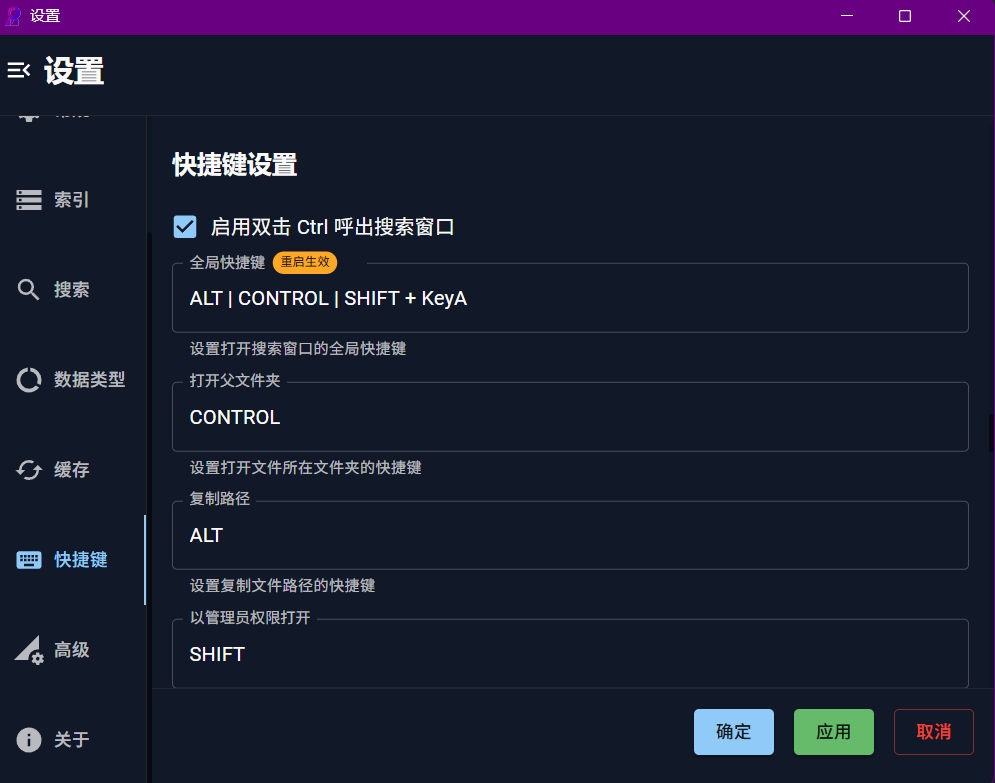
- Go to "Shortcut Key Settings" page
- Click "Global Hotkey" input box
- Press new key combination
- Click "Apply" to save settings
Method 2: Double Ctrl Key
Function Description
- Operation: Quickly press Ctrl key twice in succession
- Default State: Disabled (needs manual activation)
- Time Interval: Two key presses must be within 500 milliseconds
Activation Method
- Open Aiverything settings interface
- Go to "Shortcut Key Settings"
- Check "Double Ctrl" option
- Click "Apply" to save
Usage Tips
- Ensure two key presses are within 500 milliseconds
- Avoid conflicts with other programs' double Ctrl functions
- Some keyboards may not support this feature
Method 3: System Tray
Tray Icon Location
- Located in system tray area (usually bottom-right corner of screen)
- Icon is Aiverything's distinctive logo
- If not visible, may be hidden in tray expansion area
Operation Methods
- Left Click: Directly open search window
- Right Click: Show context menu
Right-click Menu Options
- Search: Open search window
- Settings: Open settings interface
- Plugin Settings: Open plugin configuration
- About: View program version information
- Exit: Completely close program
🔍 Basic Search Operations
Search Interface Overview
Interface Components
- Search Box: Main area for entering search keywords
- Search Results List: Display matching files and folders
- File Details Panel: Show detailed information of selected file
- Status Bar: Display search status and result statistics
Interface Features
- Real-time Search: Search as you type, no need to press Enter
- Smart Matching: Supports fuzzy matching and intelligent sorting
- Modern Design: Clean and beautiful interface design
- Responsive Layout: Supports window resizing
Basic Search Methods
Simple Search
Directly enter file name or keywords:
document
report
image
File Extension Search
Search for specific file types:
.pdf        # All PDF files
.jpg        # All JPG images
.docx       # All Word documents
.txt        # All text files
Path Search
Search files in specific paths (keywords starting with `/` or `\`):
/Desktop
/Downloads/project
/C:\Users\
Smart Sorting
- Recently accessed files are prioritized
- Frequently used files rank higher
- Sorted by file type and match relevance
📁 Search Results Operations
Keyboard Operations
Basic Operation Shortcuts
| Shortcut | Function | Description |
|---|---|---|
Enter | Open file | Open with default program |
Ctrl + O | Open with admin rights | Run with administrator privileges |
Ctrl + C | Copy file path | Copy complete file path to clipboard |
Ctrl + P | Open file location | Locate file in File Explorer |
↑/↓ | Select previous/next result | Browse search results |
Page Up/Down | Quick page navigation | Quickly browse large result sets |
Mouse Operations
Click Operations
- Left Click: Open file
- Right Click: Show context menu
File Details Panel
Basic Information
- File Name: Complete file name
- File Size: File size (automatic unit conversion)
- Modified Time: Last modification time
- Full Path: Complete file path
Extended Information
- File Icon: Icon corresponding to file type
- Preview Thumbnail: Supports preview of images, videos, etc.
- AI Summary: AI-generated summary for document files (requires AI feature enabled)
⚡ Quick Access Features
Quick Access Panel
Display Conditions
When search box is empty, quick access panel is automatically displayed.
System Shortcuts
- This PC: Quick access to computer management
- Recycle Bin: Open recycle bin
- Downloads Folder: Access downloads directory
Control Panel Shortcuts
- Control Panel: Open Windows Control Panel
- System Settings: Open Windows Settings
- Device Manager: Manage hardware devices
System Tools
- Task Manager: Open Task Manager
- Registry Editor: Open Registry Editor
- Command Prompt: Open command line
- Event Viewer: View system events
Operation Methods
- Keyboard Navigation: Use
↑/↓keys to select,Enterto open - Mouse Click: Directly click corresponding shortcuts
- Scroll Wheel: Support mouse wheel to view more options
🔧 Advanced Search Techniques
Multi-Keyword Search
Syntax Description
Use semicolon ; to separate multiple keywords, searching for files containing all keywords.
Usage Examples
# Search files containing both "project" and "report"
project;report

# Search files containing three keywords
sales;2024;excel

# Combine filename and extension
photo;vacation;.jpg

# Combine path and filename
Desktop;work;document
Advanced Tips
# Required and optional keywords (use `?` at the beginning to mark optional keywords)
project;?important;client
# Find files containing either test or file keyword
?test;?file
Search Filters
Basic Filters
Use pipe | to add search conditions:
| Filter | Description | Example | Effect |
|---|---|---|---|
f | Files only | `photo | f` |
d | Directories only | `project | d` |
full | Exact match | `readme.txt | full` |
case | Case sensitive | `Test | case` |
p | Regular expression | `\d+.txt | p` |
c | Content search | `function | c` |
Combined Filters
# Search text files containing "test"
test;.txt|f

# Case-sensitive search for Java files containing "Class"
Class;.java|case

# Use regex to search PDF files starting with numbers
\d.*\.pdf|p

# Search config files containing "password" in content
password;.config|f;c

# Exact match search for folders named "data"
data|full;d
Cache Search
Function Description
Cache search performs keyword matching within the cache of recently accessed and frequently used files for faster results.
Usage Method
# Enter colon to start cache search (keyword matching)
:report        # Search cached files whose names contain "report"
:project       # Search cached files whose names contain "project"
:image         # Search cached files whose names contain "image" (not image category search)
Search Mechanism
- Keyword Matching: Searches for files whose names contain the specified keyword, not by file type category
- Cache Scope: Searches only within the cache of recently accessed and frequently used files
- Matching Rules: Fuzzy matching on filenames, supports partial keyword matching
Cache Features
- Quick Response: Cache search responds faster
- Smart Sorting: Sorted by usage frequency and time
- Auto Update: Cache updates automatically based on usage
Network Search
Trigger Conditions
When local search finds no relevant files, network search options are displayed.
Supported Search Engines
- Google: World's largest search engine
- Bing: Microsoft search engine
- Baidu: Chinese search engine
- DuckDuckGo: Privacy-focused search engine
Setting Default Search Engine
- Open Aiverything settings
- Go to "General Settings"
- Select default engine in "Search Engine" dropdown
- Save settings
🤖 AI Intelligent Search
Enable AI Search
Activation Method
- Click AI icon on the right side of search box
- Or enable AI search function in settings
- Ensure network connection is normal
AI Icon Status
- Gray: AI function not enabled
- Blue: AI function enabled
Natural Language Search
Basic Usage
# Natural language description of needs
"Help me find last week's work report"
"Search for Excel files containing sales data"
"Recently modified image files"
"PDF documents on desktop"
AI Search Features
Semantic Understanding
- Intent Recognition: Understand user's real search intent
- Context Analysis: Analyze based on search history
- Smart Recommendations: Recommend files based on content relevance
Smart File Analysis
- Content Summary: Automatically generate document content summaries
- Keyword Extraction: Identify core keywords in documents
AI File Summary
Supported File Formats
- PDF Documents: Research reports, manuals, e-books, etc.
- Word Documents: Various documents, reports, letters, etc.
- Excel Files: Data tables, financial reports, etc.
- PowerPoint: Presentations, training materials, etc.
- Text Files: Code files, configuration files, etc.
Usage Method
- Select file in search results
- View AI summary in file details panel
- If no summary available, click "Generate Summary" button
- Wait for AI analysis to complete
Summary Content
- Document Theme: Main content theme of document
- Core Points: Key information in document
- Key Data: Important numbers and statistical information
- Conclusion Summary: Main conclusions of document
🔌 Plugin System Basics
Enter Plugin Mode
Activation Method
Enter > symbol in search box to enter plugin mode.
Interface Changes
- Search box shows plugin search prompt
- Results list displays available plugins
- Left side shows plugin categories
Plugin Browsing
Plugin Categories
- System Tools: System management and configuration plugins
- File Processing: File operation and management plugins
- Development Tools: Programming and development-related plugins
- Entertainment Apps: Entertainment and multimedia plugins
- Productivity Tools: Work efficiency enhancement plugins
Plugin Search
# Search for specific plugins
>calculator     # Search for calculator plugin
>translate      # Search for translation plugin
Plugin Operations
Install Plugins
- Visit Aiverything official website (official plugin marketplace)
- Browse or search for needed plugins
- Download plugin files locally
- Open plugin settings in Aiverything
- Select "Install Plugin" and choose downloaded plugin file
- Wait for installation completion
Use Plugins
- Embedded Plugins: Display and use directly in search interface
- Standalone Window Plugins: Open separate windows to run
Manage Plugins
- Enter plugin settings interface
- View installed plugin list
- Can enable, disable, or uninstall plugins
- View plugin detailed information and settings
⌨️ Complete Shortcut Keys
Global Shortcuts
Main Global Shortcuts
| Shortcut | Function | Default Setting | Customizable |
|---|---|---|---|
Ctrl + Shift + Alt + A | Show/hide search window | ✅ | ✅ |
Double Ctrl | Quick open search window | ❌ | ✅ |
Double Shift | Additional mode search | ❌ | ✅ |
Customize Global Shortcuts
- Right-click system tray icon and select "Settings"
- Go to "Shortcut Key Settings" page
- Click shortcut key input box to modify
- Press new key combination
- Click "Apply" to save
Search Interface Shortcuts
Basic Navigation
| Shortcut | Function | Description |
|---|---|---|
↑ | Select previous result | Move selection up |
↓ | Select next result | Move selection down |
Page Up | Page up | Quick browsing |
Page Down | Page down | Quick browsing |
Home | Select first result | Jump to top |
End | Select last result | Jump to bottom |
Search Operations
| Shortcut | Function | Description |
|---|---|---|
Ctrl + A | Select all search box text | Quick clear search content |
File Operation Shortcuts
Open Operations
| Shortcut | Function | Use Case |
|---|---|---|
Enter | Open file | Use default program |
Ctrl + O | Open with admin rights | Programs requiring special permissions |
Ctrl + P | Open file location | Locate in File Explorer |
Ctrl + C | Copy file path | Get complete path |
💡 Practical Tips
Performance Optimization Tips
Search Performance
- Use Specific Keywords: Avoid overly broad search terms, use multiple keywords for search
- Use Filters Wisely: Use file type filters to narrow scope
System Performance
- Set Index Range Reasonably: Only index necessary disks and folders
- Adjust Cache Size: Adjust cache settings based on memory situation
- Enable GPU Acceleration: Enable GPU acceleration when dedicated graphics card available
Personalization Tips
Function Customization
- Custom Shortcuts: Set shortcuts that match personal habits
- Configure Search Engines: Choose commonly used network search engines
- Set File Types: Add custom file type mappings
Troubleshooting Tips
Search Issues
# Steps to check when files cannot be found:
1. Confirm file actually exists
2. Check if file is within index range
3. Try updating index
4. Check file permissions
5. Use complete file name search
Performance Issues
# Optimization methods when search is slow:
1. Check if indexing is complete
2. Enable GPU acceleration
3. Increase system memory
4. Optimize index settings
5. Close other resource-intensive programs
📞 Getting More Help
Built-in Help
- Tip System: Operation tips in interface
- Status Information: Operation tips in bottom status bar
Online Resources
- Official Documentation: Complete usage instructions and tutorials
- Video Tutorials: Operation demonstration videos
- FAQ: Frequently asked questions and answers
Community Support
- QQ Group: 893463594
- GitHub: Issue feedback and feature suggestions
- Official Forum: User experience sharing